![JoonLogo-Update_Green@3x.svg]](https://help.joon.io/hubfs/JoonLogo-Update_Green@3x.svg)
If you make a purchase with cash or a card that isn't connected to your JOON account, you can always manually add a purchase to be reviewed for eligibility, following these steps:
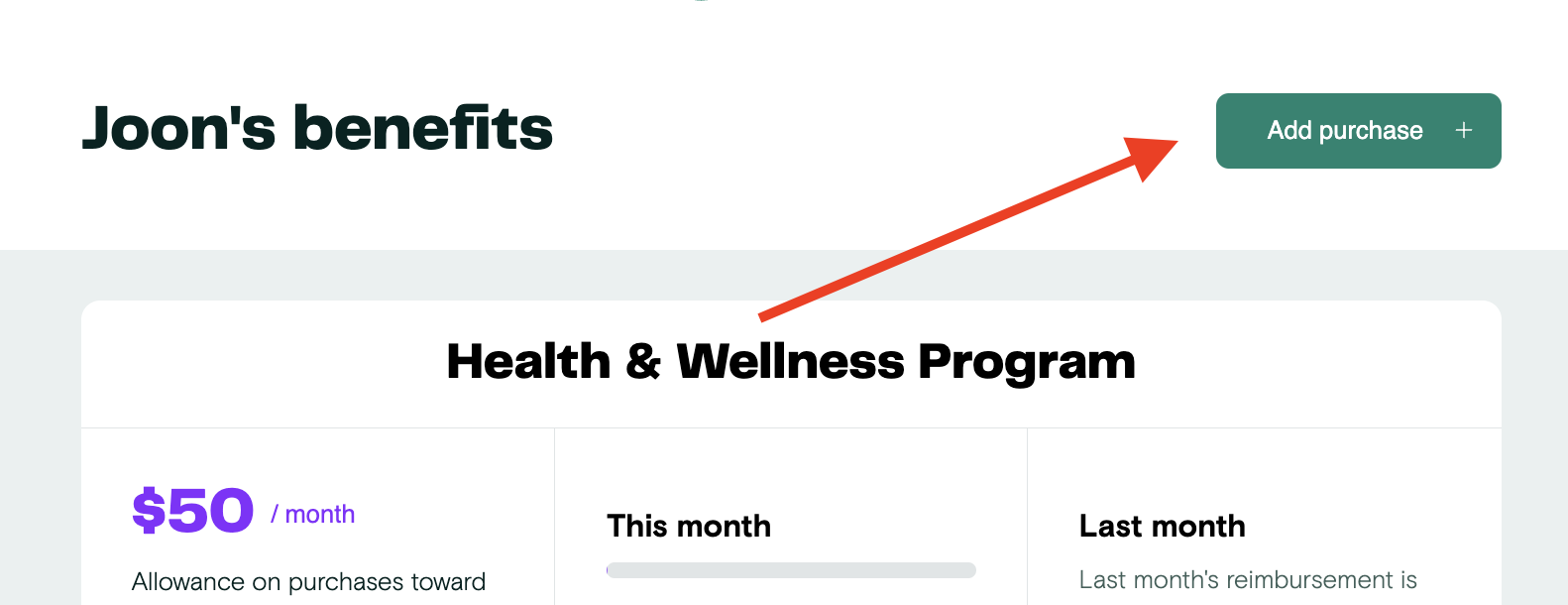
- Once logged into JOON, click Add Purchase at the top of the page:
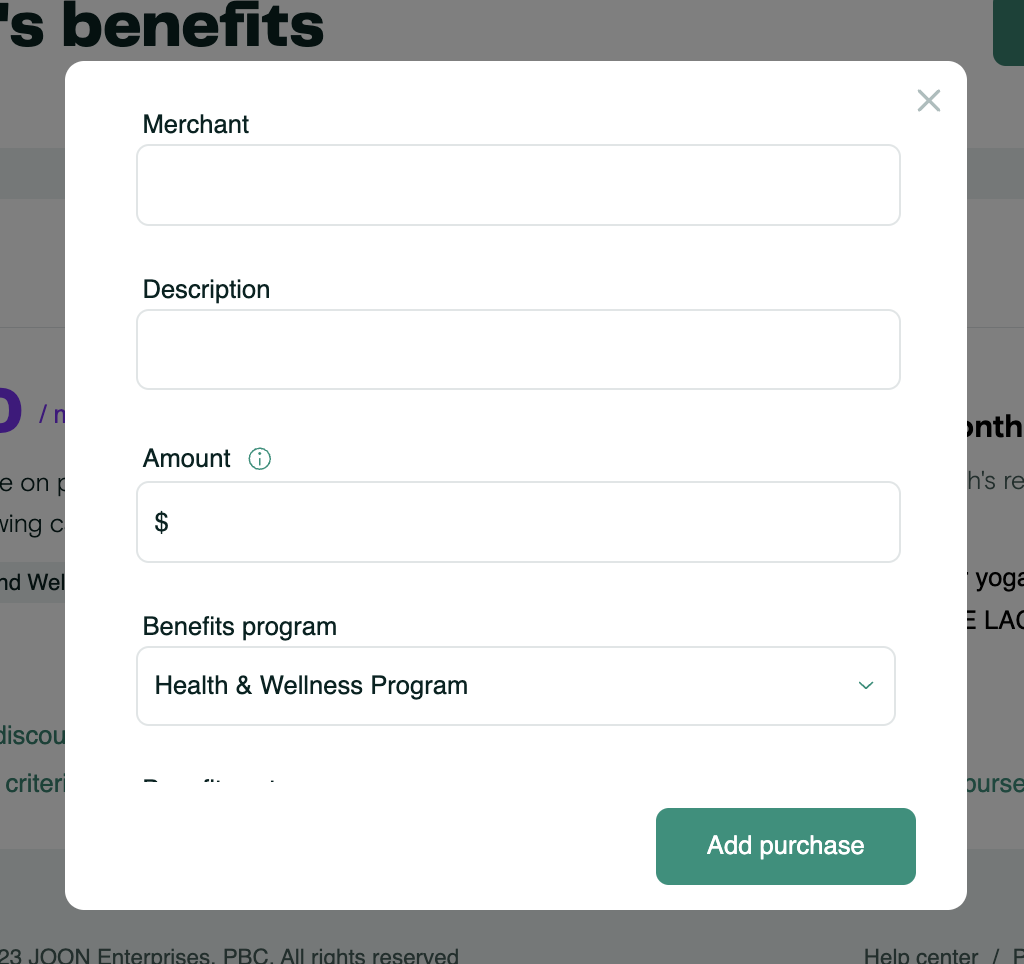
- Enter in all fields. Description of the item should be specific to what you have purchases. Make sure you select the correct Benefits program, and if applicable the correct Benefit Category. Even if your receipt is not in English, please complete the fields in the modal in English. For non-English receipts, only your description will be considered for eligibility.
- Make sure to select the date of the purchase that matches the receipt. For example, if you are reporting a purchase from January 29th on February 1st, please select the date "January 29, 2026."
- Attach a receipt that includes the merchant name, price and date. If the Merchant is a retailer that does not identify what the item was (for example: Amazon, Walmart, Target), submit an itemized receipt. If for whatever reason you need to upload more than one file as part of your purchase, follow these steps. Then click Add purchase.
- Your purchase will enter a status of pending with details about your request. Please allow for up to 3 business days for a decision.
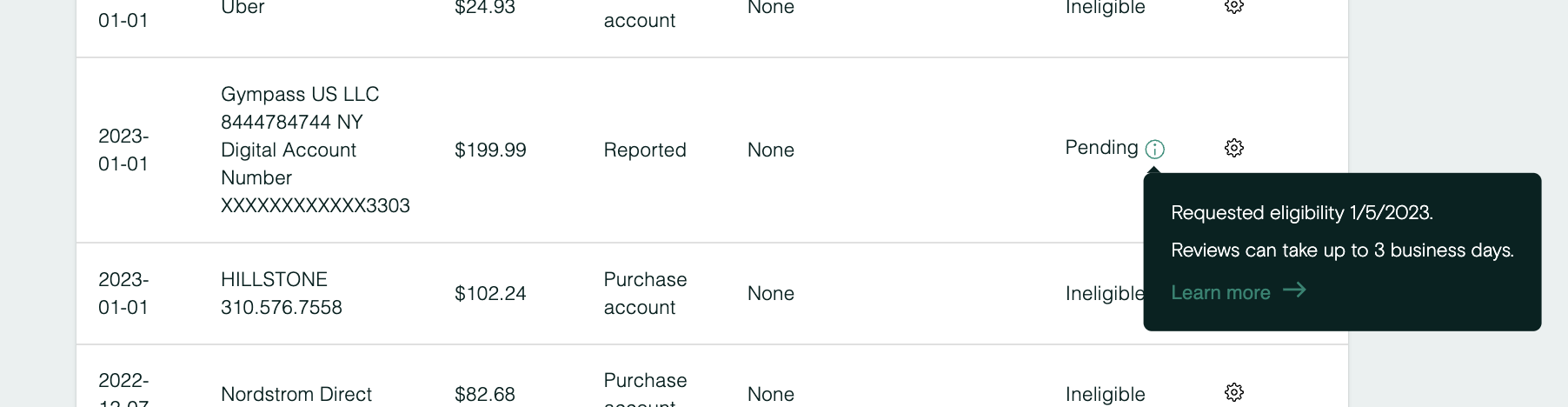
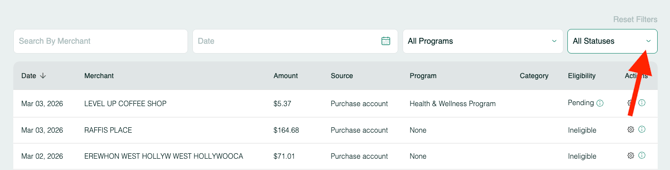
- Our team will review the purchase and mark it as eligible or ineligible. If marked as ineligible, you will receive an email with the reason why. You can filter and find purchases with a status of pending from the purchases page.
Note: You will receive an email reminder from JOON toward the end of each month if you have not used your fully allowance, so you don't need to set a personal reminder to add purchases.